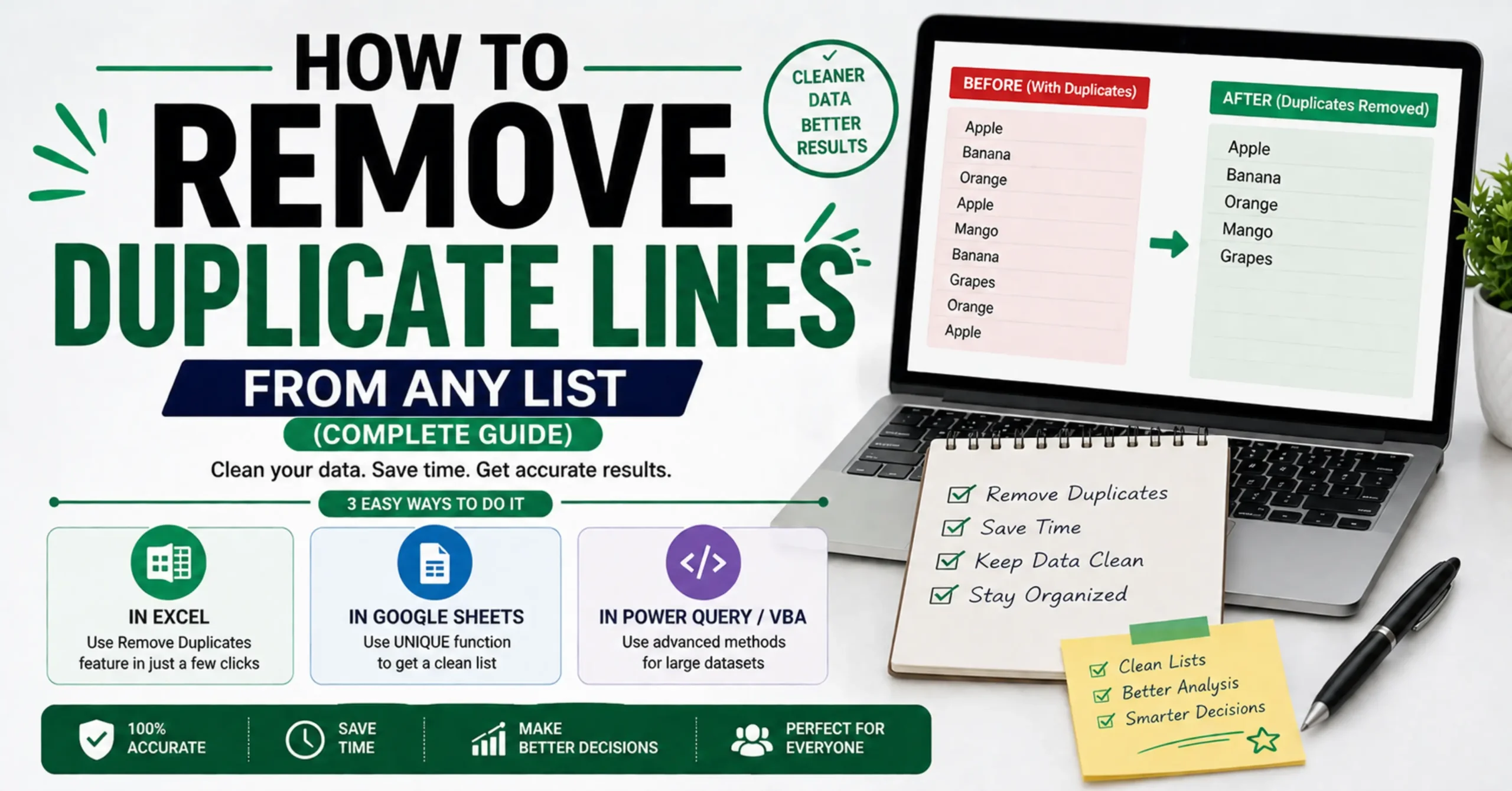
How to Remove Duplicate Lines from Any List
Anyone who has worked with a long list of data email addresses, keywords, URLs, names, or log entries has run into the same annoying problem at some point: the list has grown messy, with the same entries appearing two, three, or even a dozen times. Scrolling through hundreds or thousands of lines to manually spot and delete repeats isn’t just tedious, it’s the kind of task that’s genuinely error-prone when done by eye.
Fortunately, removing duplicate lines is a well-solved problem with several reliable methods, ranging from built-in spreadsheet features to a single command-line instruction to an instant online tool. This guide walks through all of them, along with a few technical gotchas like whitespace and case sensitivity that quietly cause “duplicate” detection to fail even when two lines look identical to the human eye.
What Does It Mean to “Remove Duplicate Lines”?
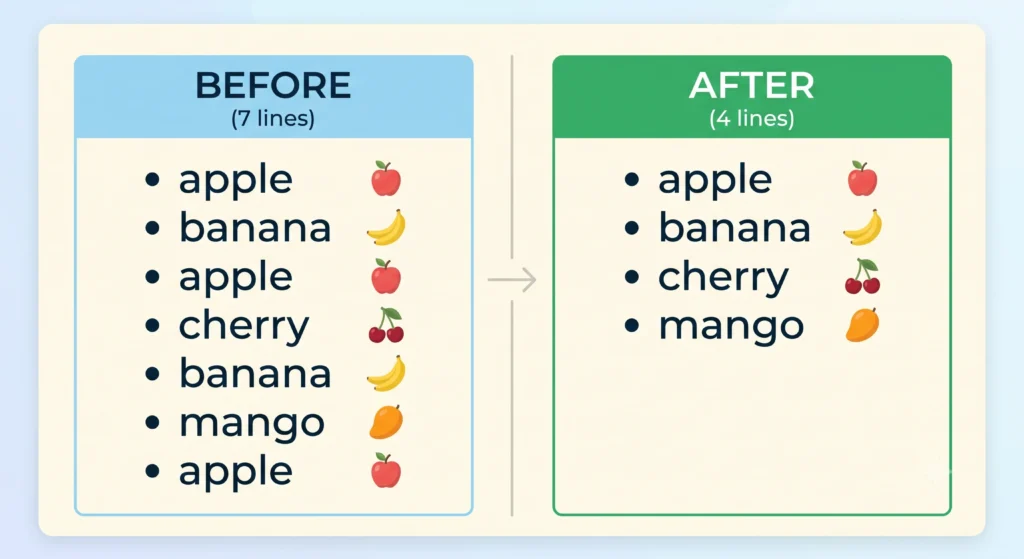
Removing duplicate lines means taking a block of text organized as separate lines a list, an exported column of data, a set of keywords, or a log file and reducing it down to only the unique entries by eliminating every repeated line beyond its first occurrence.
This is distinct from broader database deduplication, which might compare entire multi-column records to find duplicates across several fields at once. What this guide covers is the much more common, everyday version of the problem: a simple list where each line is either a repeat or it isn’t, and you want to keep exactly one copy of everything.
Why Duplicate Data Causes Real Problems
Duplicate lines aren’t just a cosmetic annoyance they quietly cause real, practical problems depending on what the list is used for. A duplicated email address in a marketing list means a subscriber receives the same message twice, which looks unprofessional at best and can hurt your sender reputation with email providers at worst. A duplicated keyword in an SEO research list wastes tracking budget and skews how your keyword coverage actually looks. In code and data pipelines, functions that assume a list contains only unique values can behave unpredictably when fed duplicates, sometimes producing subtly wrong results that are hard to trace back to their source. Even something as simple as a bibliography or reference list looks unpolished and unprofessional with repeated citations. In just about every context, a list with duplicates is a list that’s quietly costing you something, whether that’s money, credibility, or debugging time.
Case-Sensitive vs Case-Insensitive Duplicate Detection
This is one of the most important distinctions to understand before deduplicating any list, because it directly determines what counts as a “duplicate” in the first place.
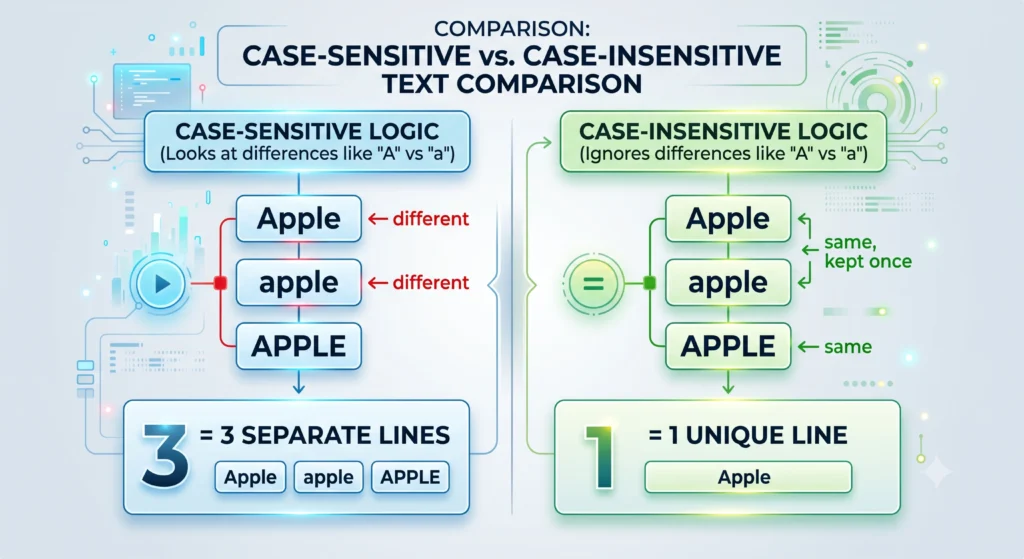
- Case-sensitive detection treats “Apple,” “apple,” and “APPLE” as three completely different lines, since it compares text character by character, including capitalization.
- Case-insensitive detection treats all three as the same entry, keeping only the first occurrence and discarding the rest regardless of how each was capitalized.
Which one you want depends entirely on your data. For lists where capitalization is functionally meaningful variable names in code, certain product codes, or case-sensitive identifiers you’ll want case-sensitive detection to avoid accidentally merging two genuinely different values. For almost everything else names, email addresses, general keyword lists, everyday text case-insensitive detection is usually what you actually want, since “John@email.com” and “john@email.com” almost always refer to the same real-world entry despite the capitalization difference.
How to Remove Duplicates in Excel or Google Sheets
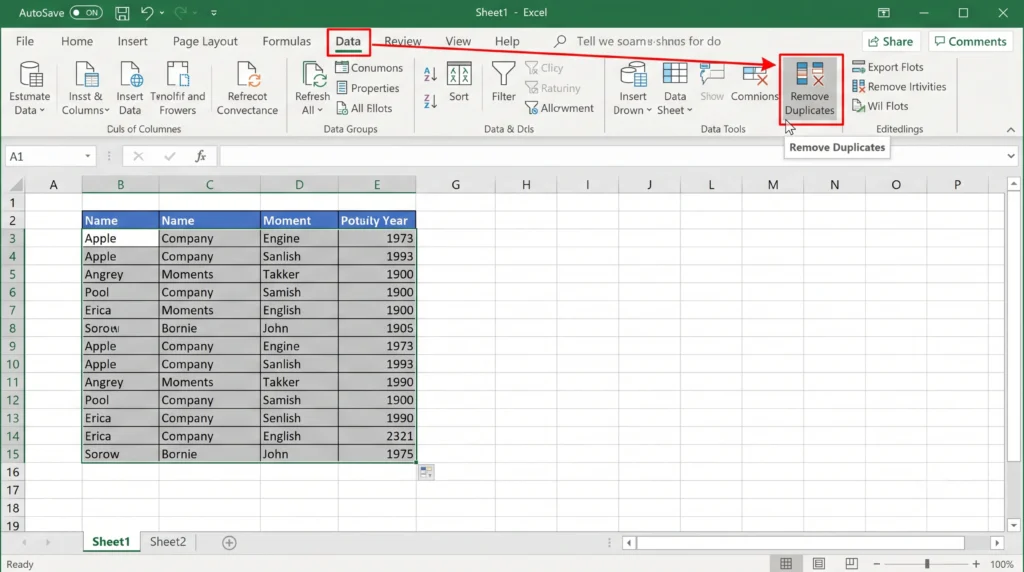
For data already sitting in a spreadsheet, both Excel and Google Sheets have a built-in feature for this.
- Step 1: Select the column or range containing your list.
- Step 2: In Excel, go to the Data tab and click Remove Duplicates. In Google Sheets, go to Data → Data cleanup → Remove duplicates.
- Step 3: Confirm which column to check for duplicates and click through to apply. The tool will report how many duplicate entries were removed.
One limitation worth knowing: the built-in spreadsheet tools generally treat text as case-insensitive by default and don’t give you an easy toggle to switch between case-sensitive and case-insensitive matching, nor a simple whitespace-trimming option both of which are common sources of “why didn’t this work” confusion, covered further below.
How to Remove Duplicates Using a Text Editor or Command Line
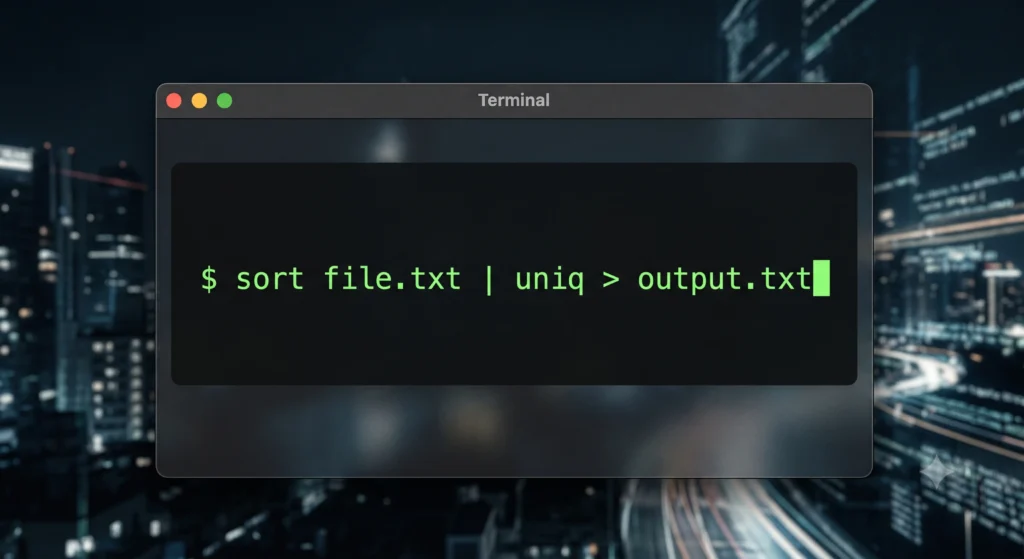
For developers working directly in a terminal, deduplication is often a single line of code but with an important technical catch worth understanding. On Mac or Linux, the standard approach is:
sort file.txt | uniq > output.txt
The reason sort comes before uniq is that the uniq command only removes adjacent duplicate lines it compares each line only to the one immediately before it, not to the entire file. Running uniq alone on an unsorted file will miss most duplicates entirely, since matching lines that aren’t next to each other simply won’t get caught. Sorting the file first guarantees that any duplicate lines end up next to each other, which is what makes the combination reliable.
How to Use the InnovaiTools Remove Duplicate Lines Tool
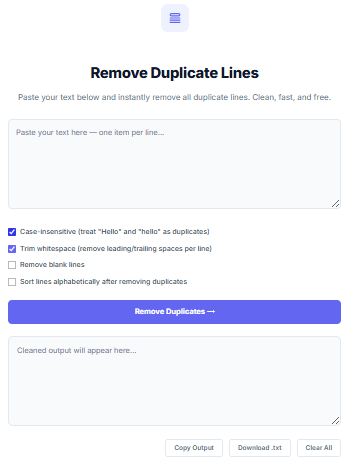
For a fast, visual method with full control over case sensitivity and whitespace handling, our free online tool is the simplest option.
- Open the Remove Duplicate Lines tool on InnovaiTools.
- Paste your list into the input box, one item per line.
- Choose your options case-insensitive matching, whitespace trimming, blank line removal, and alphabetical sorting are all available as toggles.
- Click Remove Duplicates to see your cleaned list instantly, along with a summary of how many duplicates were removed. If you want to quickly check how much shorter your list became, our Word & Character Counter can confirm the exact line and word count difference.
- Copy the result or download it as a text file.
Understanding Whitespace and Formatting Issues in Duplicate Detection
One of the most common reasons duplicate removal “doesn’t work” has nothing to do with the tool itself it’s invisible whitespace. Two lines that look completely identical on screen, like "apple" and "apple " (with a trailing space), are technically different strings to any comparison method, since the extra space is a real character even though it’s invisible. This is especially common with data copied from spreadsheets, PDFs, or web pages, where trailing or leading spaces get pulled in without you noticing. Enabling a whitespace-trimming option before deduplication which strips leading and trailing spaces from each line before comparing solves this quietly but completely, and is worth turning on by default unless you have a specific reason not to.
Real-World Scenarios Where This Matters
The need to deduplicate a list shows up across a surprisingly wide range of everyday work. Developers regularly clean up arrays of IDs, file paths, or configuration values before using them in code, where a stray duplicate can cause anything from a harmless redundancy to a genuine bug. Email marketers deduplicate subscriber lists before sending a campaign, both to avoid the unprofessional experience of a duplicate message and to protect their sender reputation with email providers, who track complaint and bounce rates closely. Students and researchers clean up bibliography entries, source lists, or collected quotes that have accumulated repeats across multiple research sessions. SEO professionals deduplicate keyword research exports before rank tracking, since a duplicated keyword wastes tracking capacity and distorts how comprehensive the keyword list actually looks. Across all of these, the underlying task is identical — reduce a messy list down to its genuinely unique entries even though the specific data and stakes differ significantly from one use case to the next.
Common Mistakes When Deduplicating Data
- Mistake 1: Not enabling case-insensitive matching when it’s actually needed, leaving near-duplicates like “Apple” and “apple” both in the final list.
- Mistake 2: Skipping whitespace trimming, which causes visually identical lines to be treated as unique due to invisible trailing or leading spaces.
- Mistake 3: Applying a line-based deduplication tool to multi-column CSV data, which only checks whole lines and won’t correctly deduplicate based on a single column within a larger spreadsheet.
- Mistake 4: Assuming the original order is always preserved if an alphabetical sort option was enabled, the output order will differ from the input, which can be surprising if you weren’t expecting it.
Key Terms Related to Deduplication
- Deduplication: The general process of identifying and removing repeated entries from a dataset, keeping only unique values.
- Case Sensitivity: Whether text comparison treats differently-capitalized versions of the same word as identical or distinct.
- Whitespace: Invisible characters like spaces, tabs, and line breaks that can cause visually identical text to be technically different when compared character by character.
- Unique Values: The distinct entries remaining in a list after all duplicates have been removed, with each value appearing exactly once.
Frequently Asked Questions About Removing Duplicate Lines
Q1: How do I remove duplicate lines from a text file? Paste your list into a dedicated tool like our Remove Duplicate Lines calculator, or use a spreadsheet’s built-in Remove Duplicates feature if your data is already in a spreadsheet column.
Q2: Does Excel’s Remove Duplicates feature work for text lists? Yes, as long as your list is in a single column, Excel’s Remove Duplicates feature under the Data tab works well for plain text lists, though it lacks fine-grained control over case sensitivity and whitespace handling.
Q3: What is the difference between case-sensitive and case-insensitive duplicate removal? Case-sensitive treats differently-capitalized text as separate entries, while case-insensitive treats them as the same entry. Most everyday lists benefit from case-insensitive matching.
Q4: How do I remove duplicates using the command line? On Mac or Linux, use
sort file.txt | uniq > output.txt. Sorting first is essential because theuniqcommand only removes duplicates that are directly adjacent to each other.Q5: Why are two identical-looking lines not being detected as duplicates? This is almost always caused by invisible trailing or leading whitespace, or by a difference in capitalization if case-insensitive matching isn’t enabled.
Q6: Can I remove duplicates without changing the order of my list? Yes, most tools including ours preserve the original order by default and only reorder your list if you specifically enable an alphabetical sort option.
Q7: Does removing duplicates work for CSV files? Line-based tools work correctly for single-column CSV data, but for multi-column CSV files where duplicates should be judged across specific columns, a spreadsheet tool is more appropriate.
Q8: How many lines can I deduplicate at once? Our online tool comfortably handles lists with thousands of lines, since all processing happens directly in your browser.
Q9: Is my data private when using an online duplicate remover? With our Remove Duplicate Lines tool, yes — all processing happens locally in your browser, and your list is never sent to or stored on any server.
Q10: Is the InnovaiTools Remove Duplicate Lines tool free? Yes, completely free with no sign-up required, and it includes options for case sensitivity, whitespace trimming, blank line removal, and sorting.
Final Thoughts
Duplicate lines are one of those small data problems that seem trivial until they actually cost you something a wasted email send, a skewed keyword report, or a subtle bug buried in a list your code assumed was unique. The good news is that solving it reliably takes only a few seconds once you know the right method, whether that’s a spreadsheet feature, a single terminal command, or an instant online tool.
For a fast, flexible solution with full control over case sensitivity and whitespace handling, use our free Remove Duplicate Lines tool at InnovaiTools any time you need a clean, genuinely unique list no formulas, no terminal, no sign-up required.

Arid is a web developer and computer expert who specializes in building practical utility web applications. With a strong focus on technical problem-solving and user experience, he develops efficient online calculators and writing tools designed to help students, bloggers, and professionals streamline their daily tasks.